

Note: This site is moving to KnowledgeJump.com. Please reset your bookmark.
Templates for Instructional Design
Note: On some browsers you need to right-click the file to download the RTF (Rich Text Format) and Excel files to your hard drive. Once you have downloaded the template you can then view and edit them with just about any word processor or text editor, however, MS Office normally works best for keeping the original formatting.
Analysis Templates (rtf)
A number of templates for assessing training needs, including:
- System Overview Instrument
- Business Outcome
- Job List Instrument
- Job Description Instrument
- Task Inventory Instrument
- Task Survey Instrument
- Employee Survey
- Supervisor & Manager Training Survey
- Task Selection Instrument
- People, Data, Things Instrument
- Task Performance Measure Instrument
- Training Analysis Overview Report
Course Evaluation (Word document)
A guide for evaluation learning platforms.
Training Estimator Spreadsheet (MS Excel)
A spreadsheet for making rough estimates of training development time and costs.
Lesson Plan Template (rtf)
This template is intended to be the ultimate lesson plan. If you only use a quarter of the learning techniques within the template, you will still have a great lesson plan.
This template uses Outlining to keep the numbers correctly sequenced. By pressing the [Enter] key within the outline or deleting an outline number, the numbers will automatically resequence themselves.
Presentation Template (rtf)
The presentation template differs from a training template in that a presentation does not require the audience to learn and then perform a task. This template is similar to the above template, but does not go into as much detail. In most presentations, the goal is to influence or make a point with a select group of people.
Using PowerPoint (PowerPoint)
A short slide show on using slides and other visual devices.
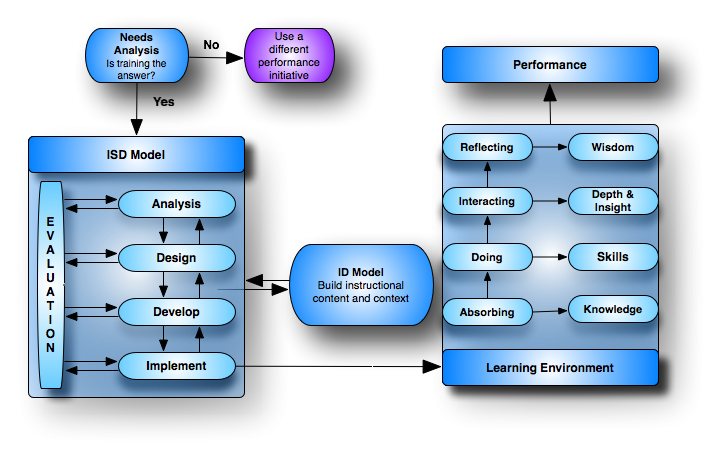
ISD is Like Building a Deli Sandwich
A brief explanation on what ISD is. A short introduction to be read before using the ISD Development Guidelines.
ISD Development Guideline
A guide for rapid ISD.
A Guide to Writing Learning Objectives
A short page on learning objectives basics.
Using The Templates
Most of the templates were created with Microsoft Word, PowerPoint or Excel. The Word templates were saved in Rich Text Format (*.rtf) so that they may be opened and edited in a variety of programs.
For several of the data entry fields for the *.rtf templates, I use "form fields" that contain examples or helpful information. These are not locked. This allows you to click on a field with your mouse, which highlights the entire field. You can then type in your own information, which will erase the field or example. This allows you to quickly clear the helpful hints for easy text entry.
In order to use the fields as more than "place-holders" as explained above, you need to have the form tool bar:

If it is not showing on your tool bar, right click on the tool bar with your mouse, and then place a checkmark next to Forms on the pop-up menu. The first button on the left (ab) allows you to enter a new text field. The fourth button from the left (with the hand) allows you to change the field properties. The last button on the right (the lock) locks and unlocks the fields. The second button from the right (the shaded a) highlights or unhighlights the fields.
I also used tables to format the documents. Even though you can see the border, it will not print. This makes for a cleaner looking document. If you want the border to print, right click within the table, select Border and Shading from the pop-up menu, and left click on All.